Hi devs. For my game i needed smoothly move from one texture, to another (between yellow and black ice). Without abrupt color jump.
I didn’t find any solution on dev forum, so i started to search.
Not so long time later i remembered that there’s UI gradient instance, that use NumberSequence as transparency modifier, so how it looks:
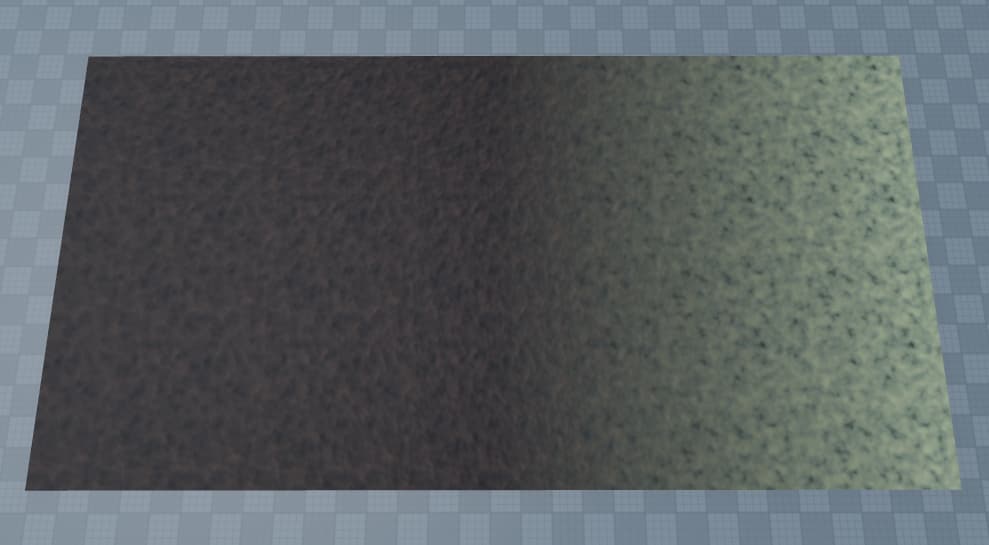
Not bad i think, but there’s problems, that in some cases can really hurt blending:
It doesn’t have reflection
Everything on the right is material, closest thing on the left is ImageLabel

Apparently SurfaceGui have some other light influence than materials, and thus this happen:
(I’ve tried changing color, it doesn’t work, it’s might be similar, but not same)

I don’t know how to solve first problem, but second is easy, we just do second fade that fades into old material:

That is: new material → transition to new material → small transition to old material → old material
So, finally, how to do this:
First of all obviously find your texture. Seamless texture.
After this make material with this texture. (If you even will use it with materials)
How to make custom material
I will show this full 4-part version of this:
- Create 2 parts with new and old material.
(it can be same material but with different part color, just like in my case)
- Add transition part, and set it’s material to new material (black).
- Add SurfaceGui to transition part, ImageLabel inside of it, and UIGradient inside of image.

- Setting up everything:
4.1 Set ImageLabel’s ScaleType to “Tile”
4.2 Set ImageLabel’s Size toUDim2.fromScale(1, 1)
4.3 Set ImageLabel’s TileSize to:UDim2.fromOffset(TextureWidth, TextureHeight)
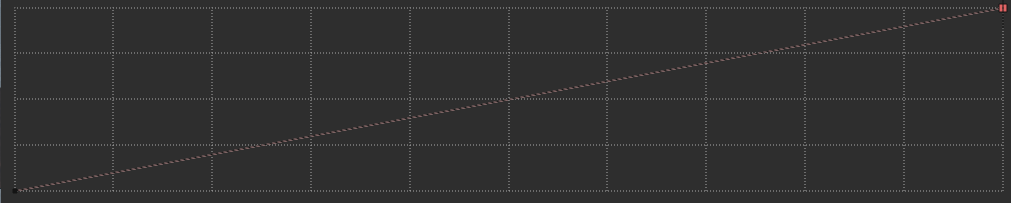
4.4 Set UIGradient’s transparency to wharever you want, in my case it’s just linear:
4.5 Then you need to know your material’s “Studs Per Tile” property, you can get it in material manager, in my case is 20.
4.6 Set SurfaceGui’s PixelsPerStud toTexture_Width_OR_Height / Material_StudsPerTile. In my case 1024 / 20 = 51.2
4.7 Set ImageLabel’s Image to your texture
You should get something like this:
- Copy your transition part and make it smaller
- Set small transition part’s material to old material
- Reverse UIGradient’s transparency values (0 > 1 before, 1 > 0 after):
- Place parts together



Congratulations! I hope i explained all clearly.
Here’s example script that make all of this for you:
Script
-- Every step in same order as in the tutorial, and because of that many moves are unnecessary

local MATERIAL_STUDSPERTILE = 8 -- Got it empirically for CeramicTiles, might be different for other materials
local IMAGE_ID = 17429425079 -- Unfortunately it's without PBR so it won't look that good
local IMAGE_SIZE = 1024

local NEWCOLOR = Color3.fromRGB(85, 63, 59)
local OLDCOLOR = Color3.fromRGB(171, 164, 143)

local NewMaterialPart = Instance.new("Part")
NewMaterialPart.Name = "NewMaterialPart"
NewMaterialPart.Material = Enum.Material.CeramicTiles
NewMaterialPart.Size = Vector3.new(10, 1, MATERIAL_STUDSPERTILE * 5)
NewMaterialPart.Color = NEWCOLOR
NewMaterialPart.Anchored = true
NewMaterialPart.Parent = workspace

local OldMaterialPart = Instance.new("Part")
OldMaterialPart.Name = "OldMaterialPart"
OldMaterialPart.Material = Enum.Material.CeramicTiles
OldMaterialPart.Size = Vector3.new(10, 1, MATERIAL_STUDSPERTILE * 5)
OldMaterialPart.Color = OLDCOLOR
OldMaterialPart.Anchored = true
OldMaterialPart.Parent = workspace

local TransitionPart = Instance.new("Part")
TransitionPart.Name = "TransitionPart"
TransitionPart.Material = Enum.Material.CeramicTiles
TransitionPart.Size = Vector3.new(10, 1, MATERIAL_STUDSPERTILE * 5)
TransitionPart.Color = NEWCOLOR
TransitionPart.Anchored = true
TransitionPart.Parent = workspace


local SurfaceGui = Instance.new("SurfaceGui")
SurfaceGui.SizingMode = Enum.SurfaceGuiSizingMode.PixelsPerStud -- for some reason if i create it in script it's default to FixedSize
SurfaceGui.Face = Enum.NormalId.Top
SurfaceGui.Parent = TransitionPart

local ImageLabel = Instance.new("ImageLabel")
ImageLabel.ImageColor3 = Color3.fromRGB(180, 180, 180) -- You might need to adjust it for other materials
ImageLabel.Parent = SurfaceGui

local UIGradient = Instance.new("UIGradient")
UIGradient.Parent = ImageLabel

ImageLabel.ScaleType = Enum.ScaleType.Tile
ImageLabel.Size = UDim2.fromScale(1, 1)
ImageLabel.TileSize = UDim2.fromOffset(IMAGE_SIZE, IMAGE_SIZE)

UIGradient.Transparency = NumberSequence.new(0, 1)

SurfaceGui.PixelsPerStud = IMAGE_SIZE / MATERIAL_STUDSPERTILE

ImageLabel.Image = "rbxassetid://" .. IMAGE_ID

local SmallTransitionPart = TransitionPart:Clone()
SmallTransitionPart.Name = "SmallTransitionPart"
SmallTransitionPart.Size = Vector3.new(10, 1, MATERIAL_STUDSPERTILE * 2)
SmallTransitionPart.Color = OLDCOLOR
SmallTransitionPart.SurfaceGui.ImageLabel.UIGradient.Transparency = NumberSequence.new(1, 0)
SmallTransitionPart.Parent = workspace


NewMaterialPart.Position = Vector3.new(10, 1, 0)
TransitionPart.Position = NewMaterialPart.Position + Vector3.new(0,0,NewMaterialPart.Size.Z)
SmallTransitionPart.Position = TransitionPart.Position + Vector3.new(0,0,(TransitionPart.Size.Z / 2) + (SmallTransitionPart.Size.Z / 2))
OldMaterialPart.Position = SmallTransitionPart.Position + Vector3.new(0,0,SmallTransitionPart.Size.Z)
Important notes
Material must have “Regular” tiling pattern, otherwise it won’t look seamless.
Every part’s size must be multiply of Material’s StudsPerTile to be seamless.
I used it only with square texture, i don’t know how it will work with other aspect ratio.
You might need to adjust image’s color so it look nice
If you want, i can explain math i used above, just let me know.
Bye bye!