
I’ve awoken from my long slumber to write the 2nd installment of the beloved Math for Roblox Developers series on the long-awaited (and dreaded topic): CFrames.
If you want to take a look at the first article on vectors, here you go!
At first glance, CFrames seem quite innocent. They’re easy ways to represent positions inside our worlds. They also work great at representing rotations, too! Maybe they are that easy…That is, if you haven’t tried to unravel the funky math operations with it.
Dividing CFrames? Multiplying CFrames? Doing both of those, combined with VECTORS?!
That’s where the ugliness of CFrames, well, shows its rear-end.
Now, in all honesty, for the majority of developers (and use-cases), you won’t really need to delve into the exact mathematics underpinning CFrames beyond what they represent. However, it’s my belief that understanding how these things all connect to each other, and a more deeper knowledge of how they work, provides more appreciation for what’s been Today, my goal is to shine some light on that ugliness, and make it a bit easier to understand conceptually (and also introduce the concept of the math underlying it, matrices).
What Are CFrames?
CFrames (aka CoordinateFrames) are Roblox’s abstraction to represent both position and rotation within our game. In essence, it’s a location marker for where we are.
CFrames vs. Vectors
Similar to Vector2 and Vector3, CFrames can be used to store some kind of information, and in practice, Vectors are often used to store positional data akin to how CFrames do, as well. And you might also remember for Math for Devs #1 that Vectors are also used to represent rotation.
So why does Roblox even bother with having this CFrame object?
The answer is two-fold:
- It saves you time (and headaches)
- It’s why you get this pretty easily.
local space my beloved

In terms of saving you time, let’s think about trying to transform an object using just vectors.
We would need a vector to translate the object to a new position.
Then, we’d need another vector to determine the right orientation.
And depending on how we want to do it, we’d need to do it in the same exact order each time. Otherwise, our rotations and new positions aren’t gonna be in the right places 
The main draw for CFrames here is that as they represent both position and rotation, you needn’t worry about the order in which you rotate. It handles both at once, saving us time from doing these transformations in sequence. Doing it all at the same time also allows us to handle things like converting between world space and local space a lot more seamless within Roblox Studio.
There’s also a mathematical issue that arises if we always represent the rotation of an object with a Vector3, called Gimbal Lock. The details itself can get very haywirey (you can read more here), but in essence:
- Imagine you’re in Roblox Studio, dilly-dallying around.
- You select an object and try to rotate it in all 3 axes.
- You rotate in 2 directions so that 2 axes line up with each other by accident.
- They’re now stuck and do the same thing.
- You can’t rotate in all 3 directions anymore.
For this, I present to you WIkipedia’s beautiful visual of Gimbal Lock:
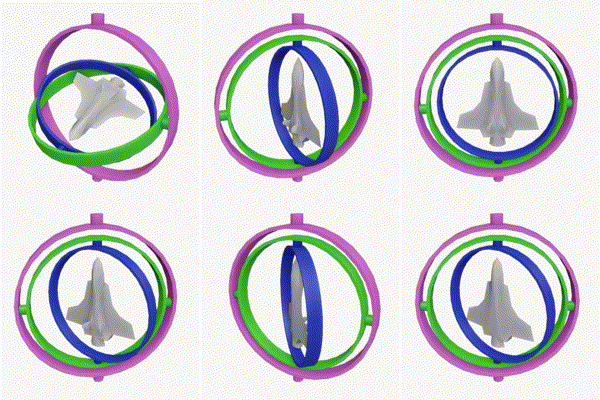
We can think of each direction that we rotate as a degree of freedom (think like the freedom to rotate). With Gimbal Lock, we risk losing one degree of freedom. So how do we get out of that, if we’re going to lose that one degree anyway?
We use more than 3 values 
But we can’t represent that in a Vector3 or a Vector2…
That’s where matrices come in.
Backtrack! What are Matrices?
While CFrames are often displayed pretty cleanly to show both the simple position and rotation in the Properties tab, they are represented through a 4x4 matrix.
Similar to a vector, a matrix is another mathematical object that stores and holds information. The benefit, however, is unlike a vector, which is just a list of values, matrices let us store it in a 2D rectangle, like this:
[ r r r x ]
[ r r r y ]
[ r r r z ]
[ 0 0 0 1 ]
When working with 2 moving parts (like position and rotation), matrices work great since it lets us store information for both of those aspects at once, whereas vectors would require us to choose one or the other.
As you might notice, there’s a lot of r in that CFrame matrix. And yes, those all represent rotation alone (more than 3, as you can see!). For position, they’re stored at the locations where you see x, y, z.
When we were thinking of rotations in 3 values alone, we were thinking about rotation in a certain manner known as Euclidean Angles. When we use just 3 values, we can do a great job at rotating the object by itself, but we have no control over where our axes lie. Since we can’t control our direction axes, 2 of them might align over time, hence, Gimbal Lock.
So instead of just representing 3D rotation into just 3 values, what if we kept track of where our 3 direction axes were at all times? And then determine the rotation based on where the axes lay?
That’s how the CFrame matrix represents 3D rotation with the all the Rs. That way, we keep track of the axes (and avoid the Gimbal Lock phenomena!).
But why the [0 0 0 1]?
Having this last row allows us to maintain a square, 4x4 shape for the matrix, which makes it a lot easier for us to actually compute the proper position and rotation onto an object. Matrices, while being rectangles of data, are also used to solve general math equations when multiplied by another quantity.
In this case, the math equation is determining at any location within the game, where are we and where should we be facing?
Our CFrame matrix holds all that information, but we need to extract it. We do this via matrix multiplication with our current location in the world. (As you might notice, vectors technically are matrices; they’re just very skinny.)
Matrix multiplication is its own subject (and the glories of it are covered in Linear Algebra, do recommend taking it!), but you can essentially view it as multiplying the rows in 1 matrix with the columns of the other matrix. But if the number of rows in 1 matrix doesn’t equal the number of columns in the other, it doesn’t work. That’s why we add the 0s and 1s, to act as a kind of filler so we can continue to extract what we need.
[ r r r x ]   [ x ]
[ r r r y ] x [ y ]
[ r r r z ]   [ z ]
[ 0 0 0 1 ]   [ 1 ]
Visualizing CFrames
One of the more intuitive ways to visualize the CFrame, in my opinion, is to think of the Rotation button in Studio when selecting an object:

Here, we get a rough image of the 3 different direction axes that our
r values within the CFrame matrix are representing, and our part being up in space, defined by the positional values within!
One of the beauties when working with things like Vectors and Matrices within game development is that they often correspond to something physical within the environment that you can grasp.
CFrame (Matrix) Operations
As you might note, the big thing with CFrame matrices is that they store information on where our rotational axes are, which means when we extract all the data, we’re working in local space relative to the object being selected! As such, when we do something like:
local a = createRandomCFrame()
local b = Vector3.new(5,0,0) -- move 5 studs forward, no rotation

local c = a * b
We extract the info from b to move 5 studs forward, but we do so relative to how a sees what forward is. In our rotated part example, it’d move closer to our screen. For transformations where we want to adjust both position and rotation, that’s where we multiply CFrames together.
But what if we want it in world space? That’s where adding a vector comes in:
local a = createRandomCFrame()
local b = Vector3.new(5,0,0) -- move 5 studs forward, no rotation

local c = a + b -- moves us 5 studs forward in WORLD SPACE
Roblox’s CFrame library is also home to variety of useful helpers to get you the information that you need, whether it’s the 3D rotation in 3 values (CFrame.Angles()), or just the position itself (CFrame.Position). For the full exhaustive list (and further reading), take a look here.
alas, the end.
As always, to those who find these little articles here and there helpful, thank you for reading 
I’m always excited to chat about these topics, and always open for suggestions on future tutorials (or just reaching out)!
'Til next time.
–Lugical
