
Topics/Index
Hello everyone!
If you’re looking to play Roblox or use Roblox Studio on Linux, this guide will walk you through everything you need using these great tools:
- Sober – Runs the mobile Roblox client via APK bundles
- TuxBlox – Runs Roblox Studio using Wine (It’s better than Vinegar imo, way less issues and you can dock panels)
- or Vinegar – Runs Roblox Studio using Wine
Alternatives to Sober (Playing the Client)
Best For:
- Sober: Best overall performance and integration for playing Roblox today. One click install but not opensource.
- Cordial: Best if you want an opensource, auditable client. Best for running two accounts at once or using plugins.
- MockTail: Best if you need voice chat, controller support, or want an opensource alternative with an easy Flathub install.
- Waydroid: Best if you need a full Android environment or the native clients are failing. It’s a full Android container, so it’s heavier and has more moving parts. (Not Recommended)
Comparison:
- Sober: Loads Roblox’s official Android build natively. Very mature and widely used, but closedsource.
- Cordial: Runs natively without an emulator. Fully opensource and auditable. Features a plugin system, separate profiles for multiple accounts, and error reporting. However, it’s younger, rougher, lacks voice chat/controller support, and has a known startup freeze bug on some launches.
- MockTail: Opensource C++ native client. Has voice chat, controller input, audio device selection, and a safe update system. Easier to install and has a larger active community than Cordial, but lacks the plugin system.
- Waydroid: Not a specific Roblox client, rather a full Android container. You install the Roblox APK inside it like on a phone. More overhead, but useful as a general-purpose tool.
 Before You Begin
Make sure your system meets the following requirements:
Sober System Requirements (based on Roblox mobile requirements):
Hardware:
- CPU: x86-64 with SSE4.2 support
→ Check CPU compatibility - Graphics: Vulkan 1.0+ or OpenGL ES 3.0+
- Kernel: Linux 5.11 or newer

 Installing Roblox (Client)
After installing Sober, open the app from your desktop menu. On first launch, you’ll be prompted to install Roblox automatically.
If you want more control, you can install Roblox manually. Here’s how:
Manual Installation Guide
Step-by-Step:
-
Go to APKMirror - Roblox
-
Click the button that looks like this:
-
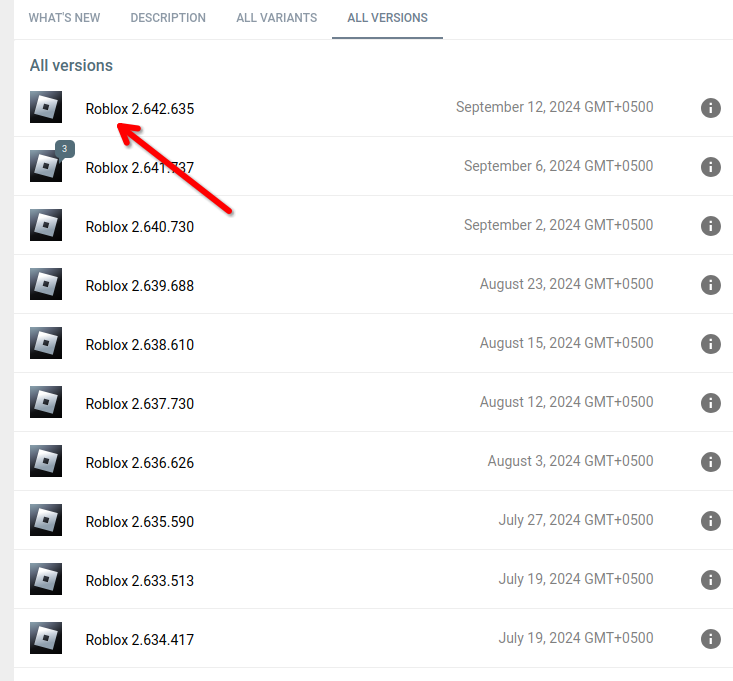
Select the latest version:
-
Scroll and click the correct download variant:
-
Finally, click DOWNLOAD APK BUNDLE and wait for the file to download.
-
Open Sober, select the
.apkmfile, and Roblox will launch!



 Installing Roblox Studio
You can install Roblox Studio using either TuxBlox or Vinegar.
Using TuxBlox (Recommended)
- Download and install TuxBlox.
- Open the TuxBlox launcher, and download Roblox Studio.
- Launch Studio directly from the TuxBlox launcher or from Icon.
TuxBlox Roblox Player support is currently in progress!
Using Vinegar
- Open Vinegar and wait for Roblox Studio to install.
- Run Studio using icon on app menu or from vinegar.
Tips
- TuxBlox: You can modify Roblox Studio Fast Flags and many other things using the built-in editor in the launcher. To stop Studio, you can kill it directly from the launcher window.
- Vinegar: You can modify Roblox Studio Fast Flags and many other things by opening the manage window from the right-click menu. If studio stops working or becomes unresponsive, you can kill it by clicking stop studio from vinegar menu/app.

 Configuring & FastFlags (Optional)
Sober’s behavior can be customized by editing its config file:
Path:
~/.var/app/org.vinegarhq.Sober/config/sober/config.json
Here are some useful options:
| Option | Description | Default |
|---|---|---|
bring_back_oof |
Use the classic “oof” death sound | false |
discord_rpc_enabled |
Show your Roblox status on Discord | true |
enable_hidpi |
Improves scaling for HiDPI displays | false |
touch_mode |
Switch between mobile and desktop UI | "off" |
use_opengl |
Use OpenGL instead of Vulkan | false |
Configuring TuxBlox (Studio)
TuxBlox handles settings and FastFlags directly through its GUI.
- Open the TuxBlox Launcher.
- Navigate to the Settings tab to change general preferences or the FastFlags tab to edit engine flags.
- Your settings are saved in
~/.tuxblox/settings.json.
Configuring Vinegar (Studio)
Vinegar allows you to tweak settings and FastFlags via its management window.
- Right-click the Vinegar icon in your app menu and select Settings.
- Here you can edit Studio settings, manage installations, and configure FastFlags.
Tip: Avoid modifying
fflagsunless you know what you’re doing. For details, check TuxBlox’s FastFlags docs. The full list of fflags are documented here.

 Studio MCP (AI Integration)
If you use AI assistants (like Cursor, VS Code, Claude, etc.) to help you code or build, TuxBlox includes a helper for Roblox’s Model Context Protocol (MCP) server.
Step-by-Step:
- Set up Studio’s side first: Follow Roblox’s official MCP guide while Studio is running under TuxBlox. This installs the server, the Studio plugin, and grants permissions inside the virtual drive.
- Point your AI client to TuxBlox: When your AI client asks for the MCP server command/path, use the TuxBlox helper script:
/home/YOURNAME/.tuxblox/studio-mcp
(ReplaceYOURNAMEwith your actual Linux username. Use the full path, as most MCP clients don’t expand~.)
Tip: You can find your exact path by running
echo ~/.tuxblox/studio-mcpin your terminal.
- Keep both running: Open Studio and open a place, then start your AI client. They both need to be running at the same time for the AI to interact with your game.

 Troubleshooting
Having issues with Sober or Roblox client?
- Try Configuring Sober
- Check the Troubleshooting guide and FAQ
Problems with Roblox Studio (TuxBlox)?
- Check the TuxBlox Common Problems guide
Problems with Roblox Studio (Vinegar)?
You may need to configure Vinegar:
How to Configure Vinegar
-
Configure vinegar by clicking on the Manage button at the context menu that appears when you right click Vinegars icon.
-
You will see a screen like this:
-
Adjust settings as needed — especially if Studio is crashing or behaving unexpectedly (This can also include
FastFlags) -
For more help, check the Vinegar Troubleshooting guide and FAQ


 Known Bugs/ Issues
Unfortunately, these methods come with a few bugs and issues:
Sober:
- Highlights appear pixelated when using Sober.
TuxBlox:
- Player does not work yet under any Wine based compatibility layer.
- Check the TuxBlox Known Issues for anything else.
Vinegar:
- Docks bug a lot in Studio.
- Panels can’t be docked in studio. (To fix this open wine config from vinegar menu then check
Desktop Integration > Enable virtual desktop) - Everything is flickery in studio, however this can be fixed by changes GPU settings.
- Studio is often detected as “unresponsive” as a result of false positives and automatically killed which is very annoying. (it’s going to be fixed next release!)
If you do happen to run in some issues, make sure to check both Sober/ Roblox Player Troubleshooting, TuxBlox Common Problems or Vinegar/ Roblox Studio Troubleshooting first then open an issue on github.

 Gallery:
Click to View
TuxBlox:


Vinegar Settings:

Sober Settings:

Config (
sudo nano ~/.var/app/org.vinegarhq.Sober/config/sober/config.json):
 Final Thoughts
That’s it! You’re now ready to run Roblox and Roblox Studio on Linux.
If you found this helpful or run into problems, feel free to reply!
 Why is there no Official Support for Linux?
Why can't there be official support for Linux?
A Note from @Bitdancer regarding official wine support.
We should stop criticizing Roblox staff, as it was not their decision to kill wine support, but rather the company’s. They were the ones to enable it.

 Feedback
Giving feedback and commenting about this post, issues you’re facing, etc, is appreciated and can be beneficial for both me and you.
Please rate the current state of this post by clicking here.
 Updates
Support for playing Roblox on web is coming, although it’s currently only for our own games, there is a chance that it will be made available for all games and that way we will be able to play Roblox on Linux safely by porting it as an app or just playing from the browser directly.


