I cant select instance, i just want to change transparency of UI Gradient 
2 Likes
Had this happen to me too lol, I had to save and close and create keyframe to get what I wanted, but it would be nice if this was fixed
2 Likes
Yea that’s my bad, had an update that fixed the keybinds, but now selecting stuff is actin up, I’ll get to it when I have some time off work.
My bad!
1 Like
Bro please add new uigradient capablities
Definitely adding support for it, but I’m also working on a bigger update, I’ll release them at the same time.
But might be a while.
The new gradient features look really sick tho, finally we can make proper loading circles and stuff
3 Likes
https://drive.google.com/file/d/1k1KiW2MsgKxqrLinp4MnEee70VyOK-m2/view?usp=sharing
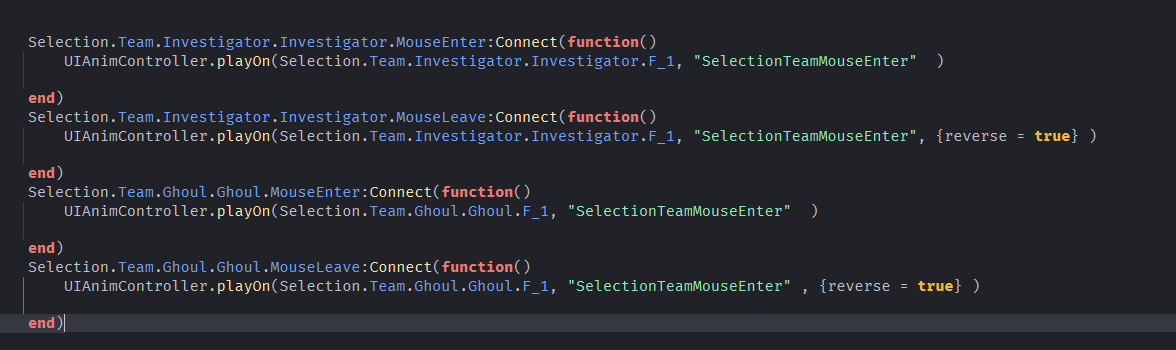
There is a bug that when you hover it at the same time each of them will stuck
1 Like
I see, I’ll look into it as soon as I can
1 Like
Xocoatl — v0.2.1 Patch 1
Hey everyone,
This patch is about living in the Timeline Animator more comfortably.
You can Pop-Out the editor onto the Studio viewport — same title bar as the dock, drag it around, resize from the edges, or Minimize it to a tiny play/scrub bar (G). Themes, Status, and a Notifications history sit in that title bar now. Landing is just the center card; opening a save slides you into the editor.
A few everyday things got nicer too: Studio Selection can auto-key, the Saves Browser animates in, confirms look cleaner, and hover in-game is less twitchy when you jump between buttons.
Plugin build B39 · P13. Runtime v0.083 — update from Status in the title bar. Saved animations stay; custom scripts inside StarterPlayerScripts/Xocoatl only are reset.
Docs: v0.2.1 Patch 1 changelog
Pop-Out
- Options → Pop-Out (or the title-bar icon) floats the editor over the viewport. Title bar matches the dock: menus, Themes, Notifications, Status. Pop-Out adds Minimize, Pop-In, and ×. Docked chrome is Pop-Out only — use Studio’s widget × to close.
- Drag the empty title strip to move. Hover just outside the left, right, or bottom edge for a pull-tab; use the corner grabs to resize from the top (down to 400×200). Double-click the empty strip to shrink to a compact timeline, double-click again to grow it back.
- Minimize / G collapses to a compact player (greyed out until a save is open). Drag its title row; restore or G brings the full editor back. Shortcuts keep working.
- Clicks on the host stay in the editor. Open Easing, Preferences, and other floating widgets swallow timeline gestures and can sit anywhere on the viewport. Middle-mouse over the host pans the timeline, not the camera.
- Dirty clip: Pop-Out / Pop-In is Save & switch or Cancel (no anyway). × still asks if the clip is dirty. Last mode and size are remembered.
Title bar, landing, notifications
- Themes, Status, and Notifications live in the title bar (docked and Pop-Out). Landing is the center card — it lists saves for the selected UI and grows with that list.
- Opening or closing a save slides between landing and the editor.
- Live toasts can show the clip name. The bell opens a history of recent toasts. Each card shows which animation it belonged to. Dismiss one with ×, or Clear them all. Actions that need that animation open stay dimmed after you close it. In Pop-Out the drawer stays on the host.
- Runtime update prompt: Not now stays locked a few seconds so Update Runtime is the easy first click.
Confirms and Saves Browser
- Close / delete / unsaved-work prompts use a new split-footer confirm. Help, Report, Export, Import, and Rename use that same centered card (they stay on the host in Pop-Out).
- Open Animation / Save As fade and scale in. Click a save to pin its sidebar preview. In Pop-Out the browser shrinks to fit (dates hide first, then the preview column).
Timeline editing
- Select preview clones or the original UI in Explorer, then drag in the viewport or edit Properties — those writes auto-key at the playhead when auto-key is on. Click back into the Animator for its shortcuts and pose overlay.
- After you copy keyframes, Ctrl+V stays on those keys even if the 3D view is focused.
- A time tag under the ruler follows a dragged key or the scrubber. Second-click a selected diamond if right-click does not fire (common in Pop-Out).
- Playback bar spans the full width. Drag the Track List divider to resize. Hierarchy / track clicks outline the preview and keep Explorer empty so Ctrl+C copies keys.
- On a
UIGradient, Type, TileMode, and Scale show when Upgraded UIGradients is on in Studio Beta Features.
Default keybinds
Defaults stay off Studio camera keys (WASD, Q / E, arrows):
- Step back / forward: , / . (was Q / E)
- Add keyframe: K (was A)
- Open / Save: 9 / 0 (was Shift+O / Shift+S)
- Minimize / restore Pop-Out: G
Rebind in Options → Preferences → Keybinds. Old camera-fighting defaults are cleared.
Runtime v0.083
- Hover leave ignores a false
MouseLeavewhen the pointer is still over that control (jumping between adjacent buttons). - Reinstall from Status if your place is still on an older runtime.
UI Designer and tools
- Themes on the Designer side rail (same packs as the Timeline).
- Fill / stroke gradient popup: per-stop time, colour, opacity; Type / Tile Mode / Scale. Colour ↔ Gradient keeps the last draft. Gradient variables and Apply gradient store those upgrade fields.
If Pop-Out or hover still feels off, reply here or on Discord.
— ChocoBasta


1 Like
absolutely goated plugin, genuine life saver for making natural looking animations without having to code them manually. just wondering, would you ever consider creating capabilities for flipbook particles? (the particle feature as a whole is also just amazing bro big props)
1 Like
Hihi, sounds like a fun feature to add!
I’ll look into it :))