Hi Creators!
The Input Action Manager is now fully released and available to use in your workflows as you’re building cross-platform compatible control schemas! 
For those new to our ecosystem, we released the Input Action System (IAS) this year: a modular, scalable framework where control schemes automatically adapt to players on different hardware. (New to IAS? Check out our guide or our YouTube video.)
The Input Action Manager lets you design, audit, and scale that setup from a single table-style interface, instead of managing instances through code or the Explorer tree.

Thank you for all your excitement and feedback as we’ve been iterating on the tool during our Studio Beta. As part of this full release, we’ve removed “Input Action Manager” from the Studio Beta Features tab. Everyone now has access to this Studio tool by default.
Refresher of the Input Action Manager
The Input Action Manager is a table-style editor for IAS. Your contexts, actions, and bindings for every input schema live in one view, and changes stay in sync with the Explorer.
To open the Input Action Manager, head to the top menu and select Window > Input > Input Action Manager. We recommend keeping IAM undocked or docked at a large size for the best experience!
Once you have it open, you can use this tool for the following use cases:
-
Build your hierarchy: Create an
InputContext,addInputActions, and set each action’s bindings per platform in the table. Use the interface to add more bindings on the same input schema, or bind touch inputs to UI buttons by selecting a touch cell and choosing the button in the Explorer.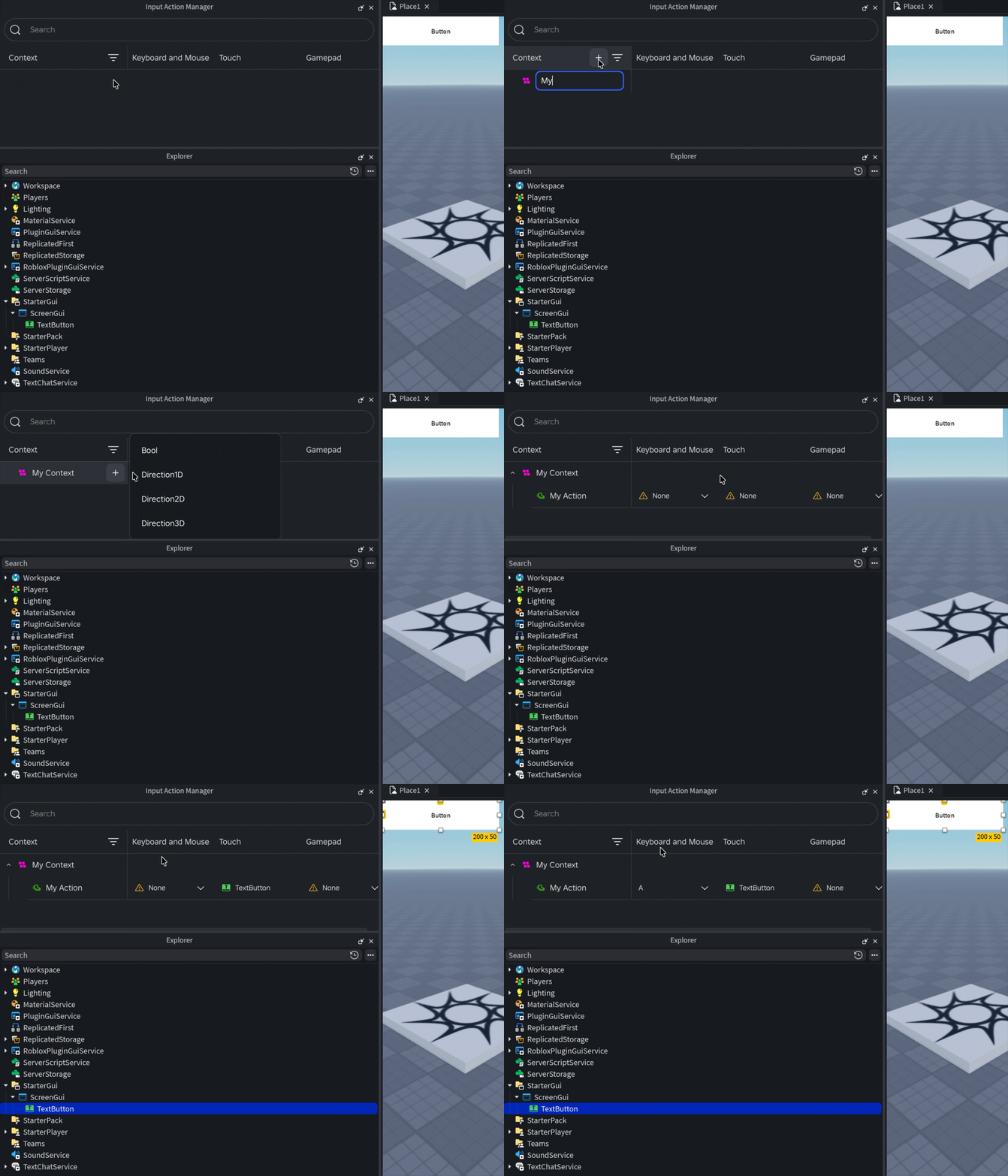
-
Catch cross-platform problems early: IAM flags actions that are missing a binding for an input schema, and warns you when the same keycode is mapped to more than one action in a context.
-
Stay focused in your workspace: Filter by context or device to see only the gameplay state or hardware you’re working on. Existing IAS instances in your experience appear automatically, and actions without a context are grouped under a Default Context folder.
Check out our guide or Studio Beta Dev Forum post for more examples of these workflows.
What’s New
Since Studio Beta, we’ve made a number of improvements to enhance your workflows:
- Live Debugging Support: See what values actions are firing in real-time while in PlaySolo mode through the “State” column in the Input Action Manager. This column only appears during play mode and disappears when you re-enter edit mode.

PlayerScriptsVisibility: Default input actions from Roblox-provided PlayerScripts (e.g., Move, Jump) now display directly inside the Input Action Manager during both edit-time and run-time, so you can see exactly how your custom controls interplay with Roblox’s default movement actions. These are read-only currently.
 Note: To see this feature, you must be opted into our IAS-converted player scripts. Do this by setting the
PlayerScriptsUseInputActionSystem variable to Enabled on Workspace. See this post for more information.

- UIModifier Support: You can now configure
UIModifierinstances directly inside the Input Action Manager, alongside your actions and bindings. Modifier controls have been moved to the “Add” button for easier discovery, and the modifier menu has been updated to be more intuitive.

- Property Editing Support: Properties tied to
InputContext,InputAction, andInputBindinginstances can now be edited by right clicking on the relevant tree node, or table cell.

- Easy Access: You can now open the Input Action Manager directly from the properties panel when you are selecting either an
InputContext,InputAction, orInputBinding!

- Undo/Redo Support: Changes made in the Input Action Manager are now tracked via Studio’s change history, so you can undo and redo edits like any other Studio operation.
Known Issues
- Editing tools are still available in play mode – this functionality is unintended and will be removed.
- You can currently add new instances under
PlayerScriptscontexts, even within edit mode – this functionality is unintended and will be removed. - The ResponseCurve property isn’t appearing properly in IAM for Direction2D actions.
- There are some cases where the properties panel & IAM fall out of sync if you are editing both in parallel.
 Made with love
IAM was made possible thanks to hard work from @ProtoValence, @SharpenedbyWater, @uiuxartist, @Dogekidd2012, @RaspberryPie007, @Astonish1656, @jimjamjomj, and @MetaVars.
Please continue to leave feedback, ask questions, or share your amazing creations in the thread below. We can’t wait to see what you build! 